
Most invoice templates are built for one country’s tax system and fall apart everywhere else. This one has no tax rate baked in. You set the label VAT, GST, Sales Tax, or nothing at all and the rate that applies to you.
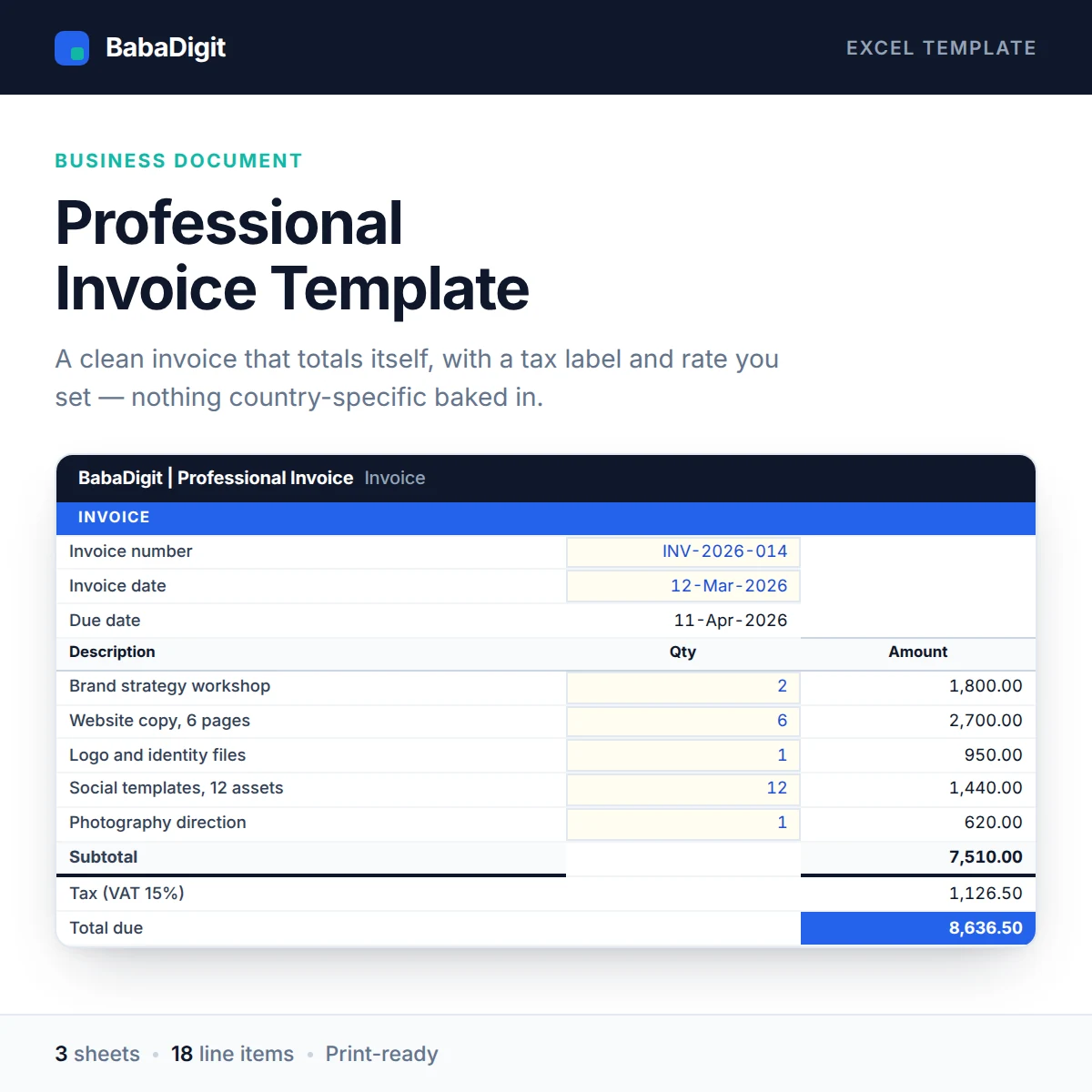
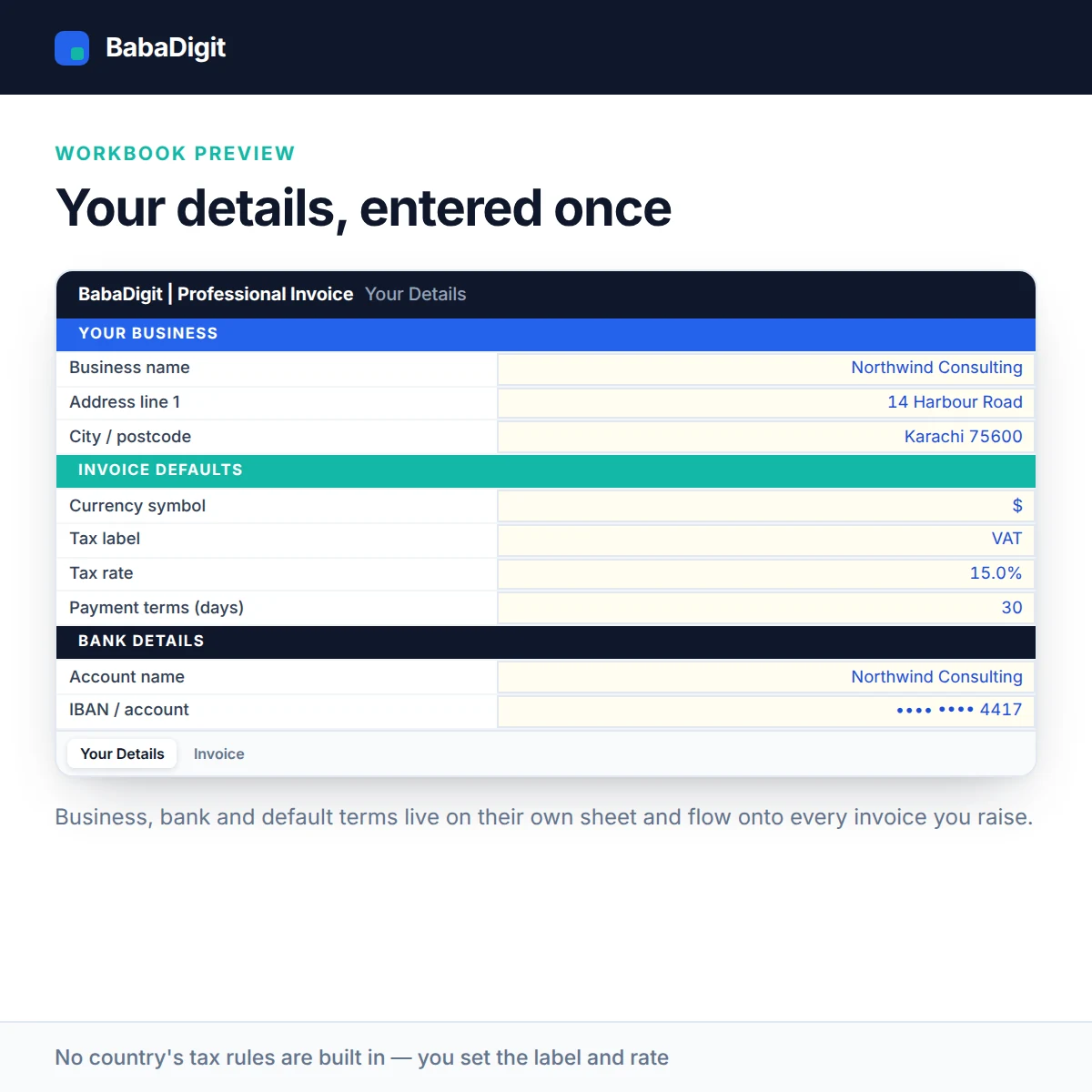
Your business details, bank information and default terms are entered once on a separate sheet and flow onto every invoice you produce. The invoice itself takes eighteen line items, each with its own quantity, unit price and discount, and totals them automatically. The due date calculates from your payment terms.
The print area is already set, so it exports to a single clean PDF page without fiddling with page setup. Unused rows print blank rather than showing zeros.
What you get
- 18 line items with per-line discount
- Configurable tax label and rate — nothing country-specific
- Business and bank details entered once
- Automatic due date from your payment terms
- Print area and page scaling pre-configured
- Configurable currency symbol
- Blank rows print clean
Who it is for
Freelancers, consultants, agencies and small businesses who bill clients directly and want something tidier and more reliable than a word processor.
How to use the template
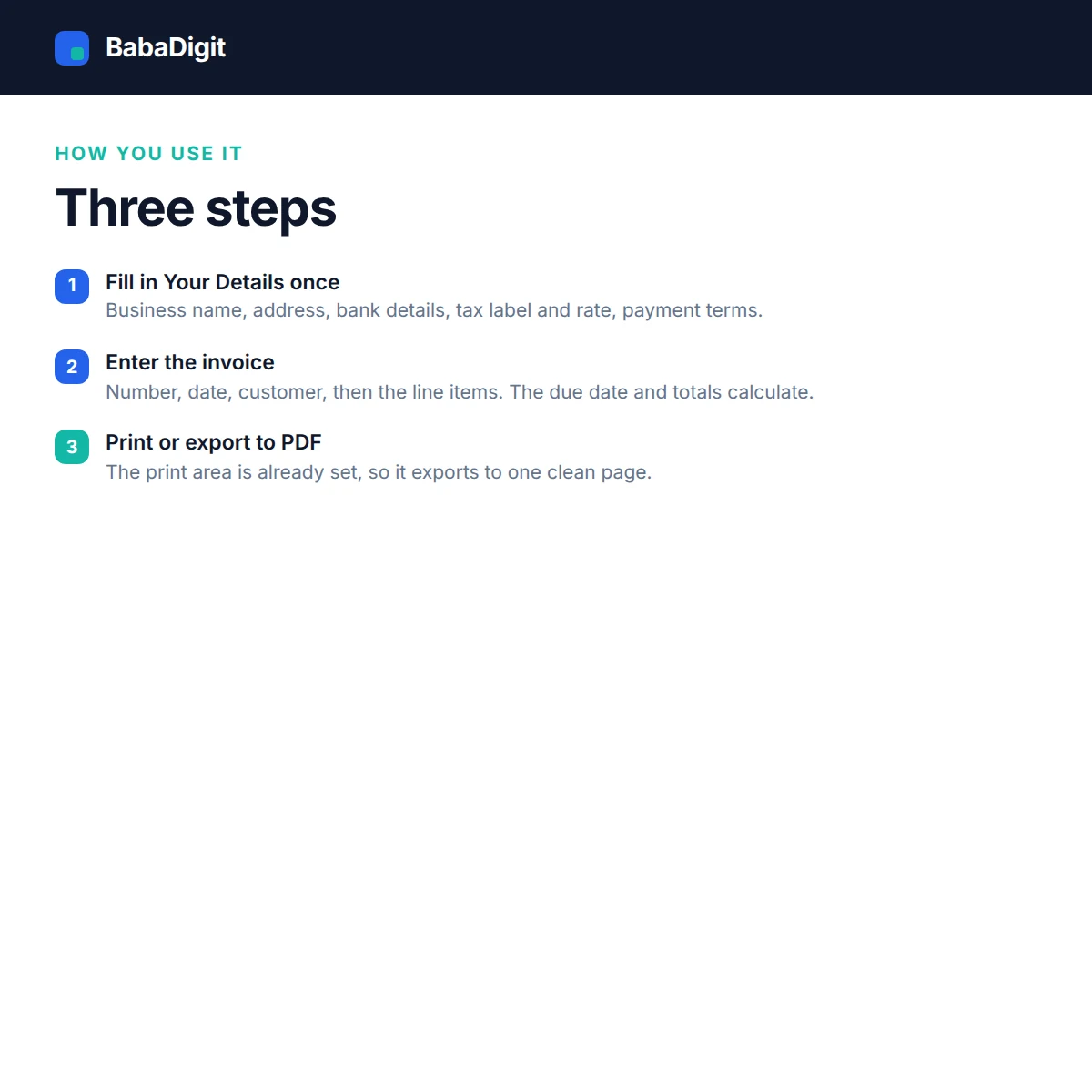
1. Set up your business details
Enter your business information, bank details and invoice defaults on the Your Details sheet. These details are carried into the invoices you prepare.
2. Prepare the invoice
Open the Invoice sheet, enter the customer and invoice details, and add your items with their quantities, unit prices and applicable line discounts. The template calculates the invoice totals and due date using your payment terms.
3. Save and send
Save each completed invoice as a separate file using its invoice number. The print layout is already configured, so you can print the invoice or export it as a clean, single-page PDF.
In the download
- Excel workbook with 3 sheets
- README with full usage guide
- Licence covering commercial and client use
- Worked sample invoice, clearly labelled
Sheets in the workbook
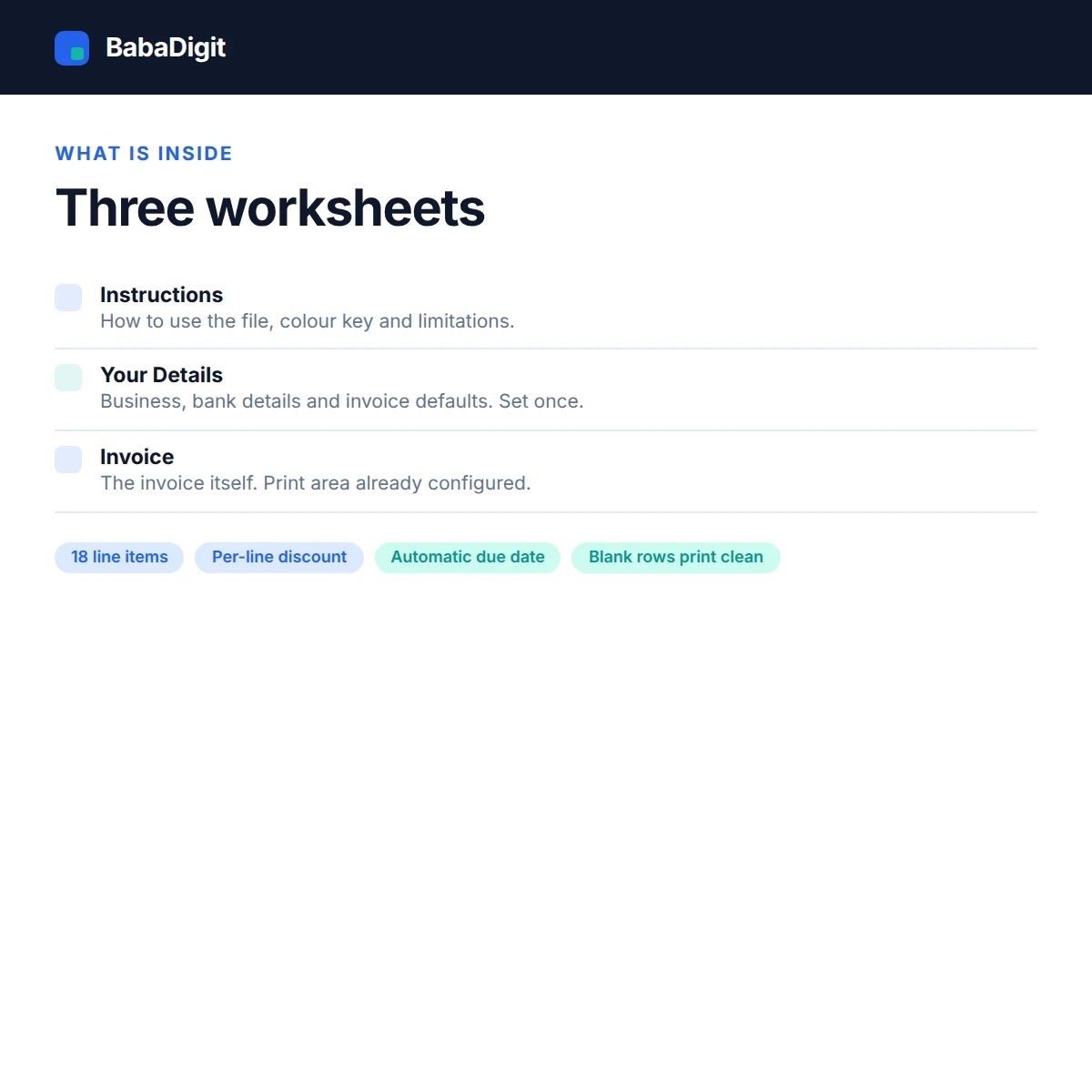
- Instructions: How to use the file, colour key and limitations.
- Your Details: Your business, bank details and invoice defaults. Set once.
- Invoice: The invoice itself. Print area already configured.
How to create an invoice in Excel
Creating an invoice takes a few straightforward steps:
- Set up your business details: Open the Your Details sheet and enter your business information, bank details, default payment terms and invoice settings. These details are carried onto the invoice.
- Enter the invoice information: Open the Invoice sheet and fill in the relevant customer and invoice details.
- Add products or services: Enter each description, quantity and unit price. Apply a discount to individual lines where needed, then set the tax label and rate applicable to your invoice.
- Check the totals and due date: Review the calculated amounts and confirm that the payment due date reflects your agreed payment terms.
- Save or export the invoice: Use the pre-configured print layout to produce a clean, single-page PDF. Save each invoice under its own filename because invoice numbers do not automatically increment.
The workbook includes a clearly labelled sample invoice to help you understand the layout before preparing your own.
Requirements
- Microsoft Excel 2016 or later, or Microsoft 365
- Also opens in LibreOffice Calc, Google Sheets (import) and Apple Numbers
- No macros, no add-ins, no internet connection required
Please read
- No country’s tax rules are built in. Mixed rates across lines, reverse charge, withholding tax and exemptions are not handled.
- Invoice numbers do not auto-increment. Save each invoice under its own filename.
- This is not an accounting system it does not track what has been paid.
- Not tax advice. If you are unsure what to charge, ask an accountant.
- Sample data is included and clearly labelled. It is illustrative only.
- This is a tool, not financial, accounting, tax or legal advice.
Frequently Asked Questions
Can I use this invoice template for VAT, GST or sales tax?
Yes. You can set the tax label and rate yourself, including VAT, GST or Sales Tax. The template does not contain country-specific tax rules, so you are responsible for entering the rate and applying the correct tax treatment for your business.
How many products or services can I include on one invoice?
The invoice supports up to 18 line items. Each line includes a description, quantity, unit price and discount, with the relevant amounts calculated automatically.
Can I change the currency and payment terms?
Yes. You can configure the currency symbol and enter your default payment terms in the Your Details sheet. The invoice uses those terms to calculate the payment due date.
Can I save or send the invoice as a PDF?
Yes. The workbook has a pre-configured print area designed to produce a clean, single-page invoice PDF. You can save the PDF and send it to your customer.
Does the template automatically generate invoice numbers or track payments?
No. Invoice numbers do not automatically increment, and the workbook does not track paid or outstanding invoices. Save each completed invoice under its own filename and manage payment records separately.
Which spreadsheet applications can open the template?
The template is designed for Microsoft Excel 2016 or later and Microsoft 365. It can also be opened in LibreOffice Calc, Google Sheets (after importing the file) and Apple Numbers, although formatting may vary between applications.
Reviews
There are no reviews yet.